
How to Link Virgin Voyages Bookings for Dining Reservations and Excursions
If you’re traveling in a group with multiple cabins you may be wondering how to book dining, shore excursions and activities with your sailing mates.
As your First Mate, I will link multiple cabins in the back end but there are some steps you may need to take to ensure you can view everyone’s profiles and select them when making reservations.
This article will walk you through how to verify whether your profiles are linked and how to link them.
Check if Cabins are Already Linked
The first thing you need to do is verify if your bookings are already linked. The easiest way to do that is on your Virgin Voyages account online:
- Login to your Virgin Voyages account on a browser (not the App)
- Find your cruise under “Upcoming Voyages” and click “Go to Voyage Home”.
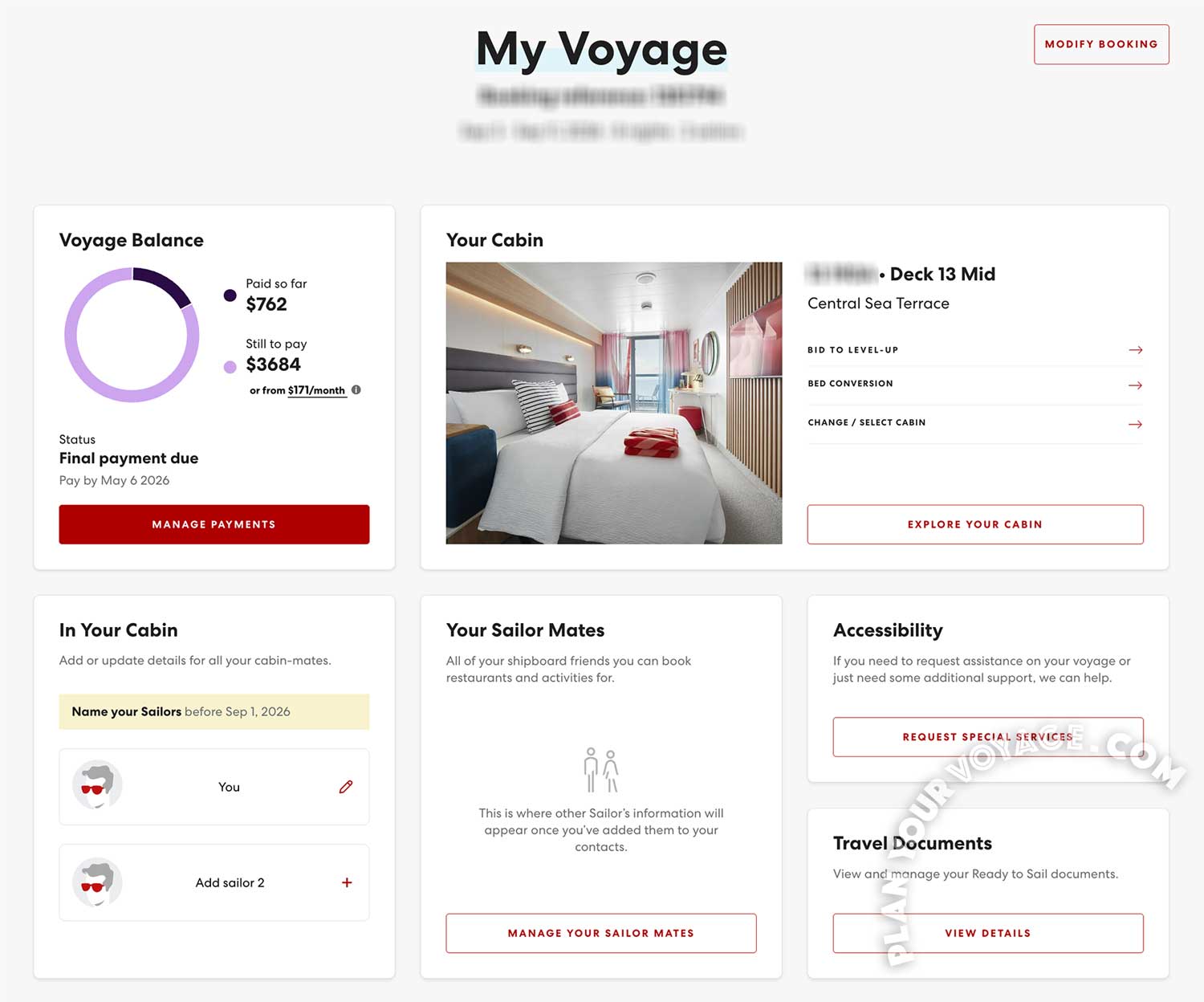
- From there, select the “My Voyage” tab on the top menu.
- The “In Your Cabin” section should display you and your cabin mate(s). Click “Add Sailor X” if they’re missing but read this before you do to avoid creating duplicate accounts.
- “Your Sailor Mates” will list everyone you’re traveling with on other cabins.
If everyone is listed under “Sailor Mates,” no action is needed. You’ll be able to select their profiles when you book dining, shore excursions, and onboard activities.

If “Your Sailor Mates” is empty or missing some of your travel mates, you can add them in the Virgin Voyages app. This feature is not available on the website.
Link Sailor Mates in the Virgin Voyages App
Once you’ve verified who is linked and who is not on your online account, you can “Add a Friend” via via the home page of the Virgin Voyages App.
But before you do that, make sure everyone in your party has done the following:
- Confirmed their reservation with a deposit or full payment.
- Created or activated their Virgin Voyages accounts and successfully accessed their booking online AND on the App.
- Completed the check-in process in the App.
The next step may not work if all three things are not true.
How to “Add a Friend” in the Virgin Voyages App
If everyone in the party has been able to access their booking online and on the App, you can add them as friends via the App:
- Open your booking on the Virgin Voyages App (if you have more than one voyage booked, you can switch between them by clicking “Me”, then “Settings”).
- On the homepage of your selected voyage, scroll down until you see “Add a friend”
- Your travel mates can scan the QR code or you can send them a link via email or text.
- Once they receive the invitation, they will be prompted to accept and add you as a friend.
- You can allow them to see your activities if you’d like. That’s optional.
You usually only need to add one Sailor from each cabin. The others should be automatically added but go back to your online account to double-check.
Check Now, Not Later (Because Tech Happens)
Check that you can see all your friends ahead of time, otherwise you might not be able to make group reservations for dining or other onboard activities. If you’ve followed these instructions and still can’t link with your friends and family, the Virgin Voyages tech support may need to step in.
Some of the common issues I see with my clients are:
- A Sailor has multiple accounts with different email and is logged into the incorrect one.
- A Sailor has duplicate accounts and Virgin Voyages has to merge them.
- As the First Mate, I created the reservation for a first time Sailor and they have not activated their account by logging in.
- Or there may be a weird tech glitch that’s usually resolved by Virgin Voyages resetting the account.
Do not wait until the last minute to link with your travel mates! If there are tech issues to resolve, it can take them a couple of days to fix.
👋 Hi, I’m Denise — travel advisor with Fora and Top 100 First Mate with Virgin Voyages. This article is intended for my clients here at PlanYourVoyage.com. If you’re booking on your own using my First Mate link or using a different travel advisor, some of this information may not apply to you. I try my best to keep everything updated but something is off or you have any questions, please reach out. Cheers!